Upload a custom logo
Beginner2 minPro and Enterprise
What you'll do
Put your logo in the middle of your lot's QR codes.
Have ready
- Your logo as a PNG, JPEG, SVG or WebP file, up to 2 MB. Square looks best.
- A Pro or Enterprise plan
Step 1: Open Settings
In your dashboard, click Settings and find the Logo card.
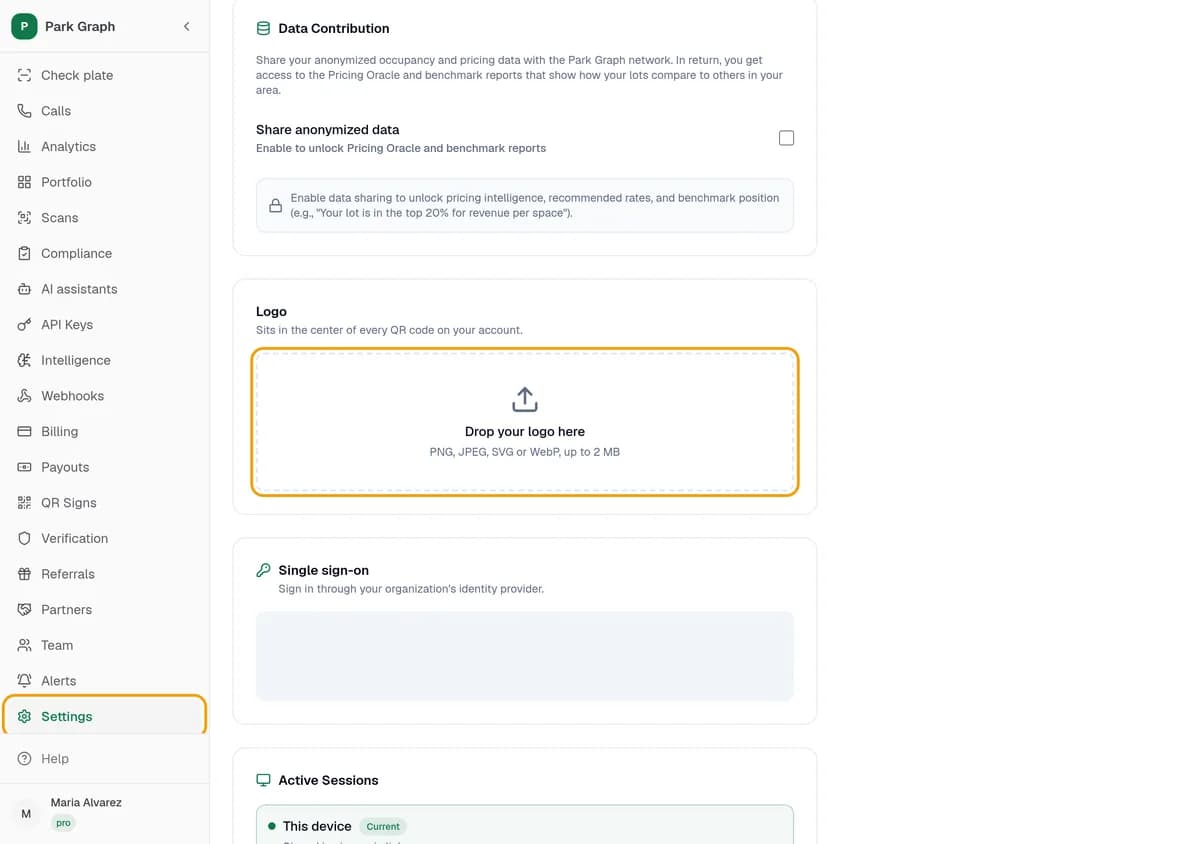
Step 2: Upload your logo
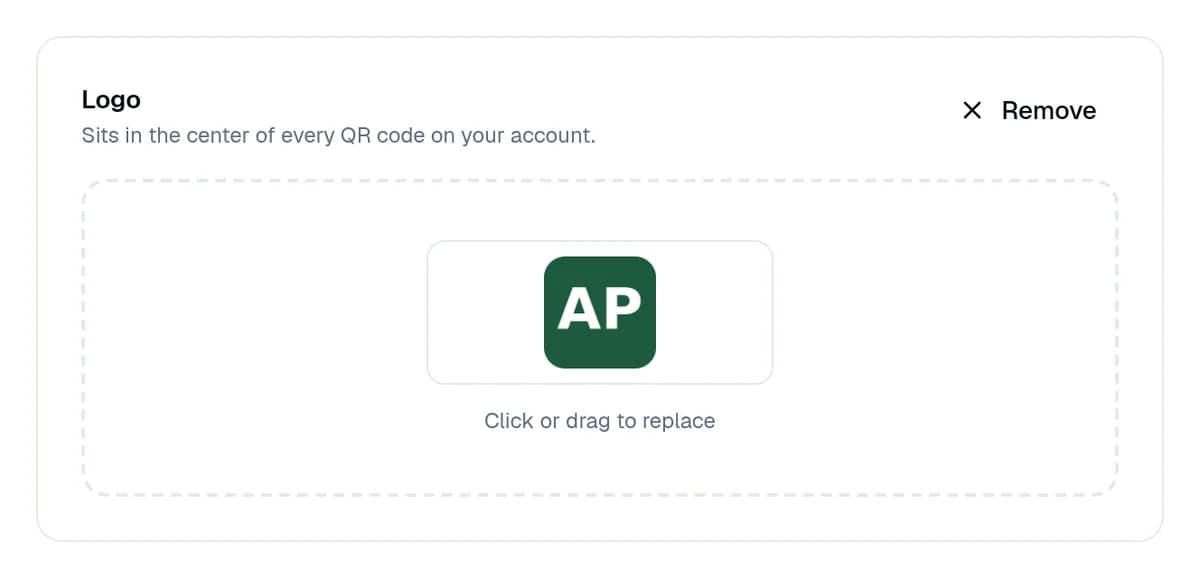
Drag your file onto Drop your logo here, or click the box to pick it. It saves right away. Check the preview. To change it, click the box again or click Remove.
Step 3: Print a fresh sign
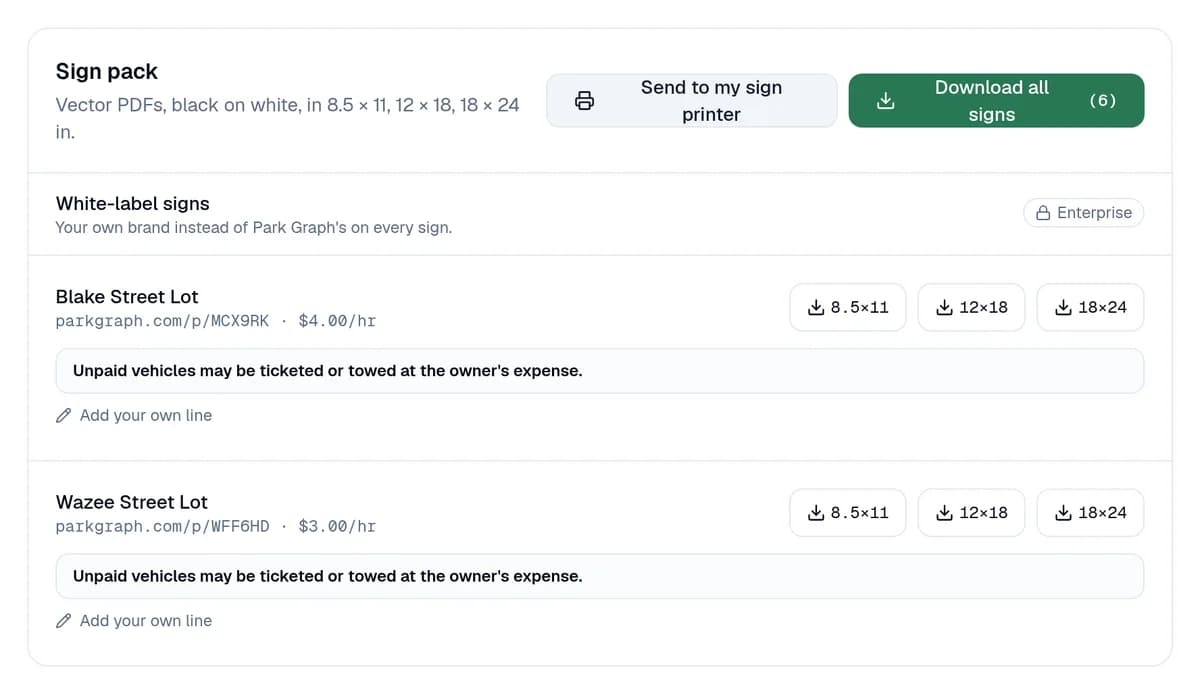
Click QR Signs and download a new sign for your lot. Print it and put it up in place of the old one. Old signs keep working; they just don't have your logo.
You're done when
Your logo shows in the middle of the QR code on your new sign.
Stuck?
- See Upgrade to Pro instead of the box? Logos come with Pro and Enterprise.
- File won't upload? Use a PNG, JPEG, SVG or WebP file under 2 MB.
- No logo on your sign? Download the sign again after you upload. Signs you downloaded before don't change.
Still stuck? Call (877) 422-PARK.